 DayPilot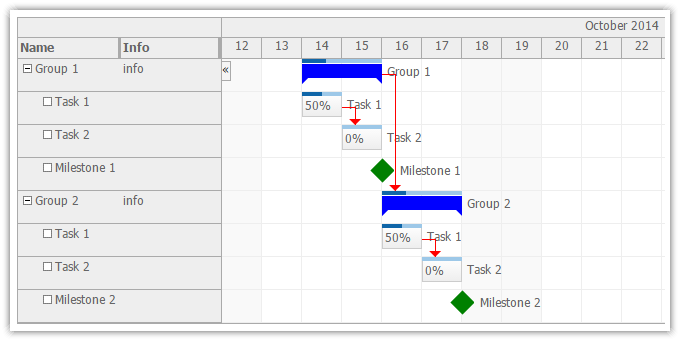
DayPilot Pro includes an ASP.NET Gantt Chart control. It displays a timeline for a hierarchy of tasks.
See Also
Example
<DayPilot:DayPilotGantt
  ID="DayPilotGantt1"
  runat="server"
  >
  <Columns>
      <DayPilot:TaskColumn Title="Name" Property="text" Width="100" />
      <DayPilot:TaskColumn Title="Info" Property="info" Width="100" />
  </Columns>
</DayPilot:DayPilotGantt>
For a sample ASP.NET web project that demonstrates how to display a Gantt chart using an SQL database, see the Gantt Chart Tutorial [code.daypilot.org]. The download includes both C# and VB.NET versions.
Demo
Tutorial
- ASP.NET Gantt - Project Management Tutorial [code.daypilot.org]
Drag and Drop
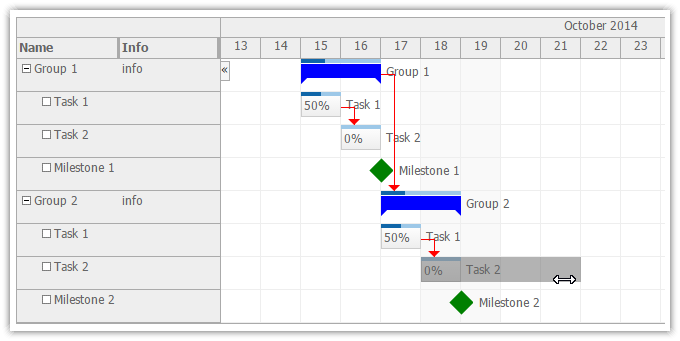
DayPilot ASP.NET Gantt Chart supports the following drag and drop operations:
- moving tasks and milestones in time
- resizing tasks
- task tree drag and drop
- creating dependencies (links) using drag and drop
Read more about Gantt drag and drop support.
Progress Bar (Percent Complete)
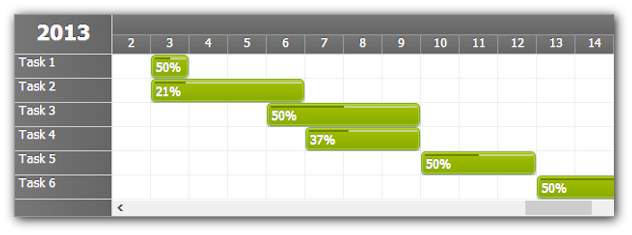
In order to use the duration bar to display task progress, use DurationBarMode="PercentComplete" and set the value in BeforeEventRender event.
Example
protected void DayPilotScheduler1_BeforeEventRender(object sender, BeforeEventRenderEventArgs e)
{
  int complete = (int) e.DataItem["complete"]; // use "complete" field of your DataSource items
  e.PercentComplete = complete;

  string cs = String.Format("{0}%", complete);  // override the task text
  e.InnerHTML = cs;
}
Full CSS Styling
All elements can be styled using pure CSS.
Export as Image (PNG, GIF, JPG)
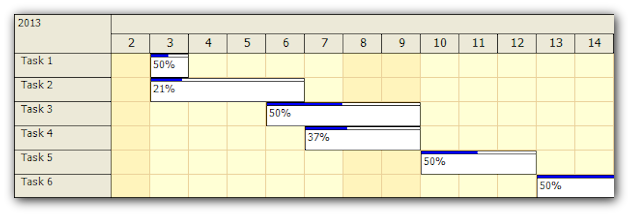
The Gantt chart can be exported as image.
- Formats: PNG, JPG, GIF, BMP, TIFF (MemoryStream class)
- Raw Bitmap class (you can further modify the image or merge it with other images)
- Add images to PDF files, e-mails, or display static snapshots of the gantt chart
CSS Themes
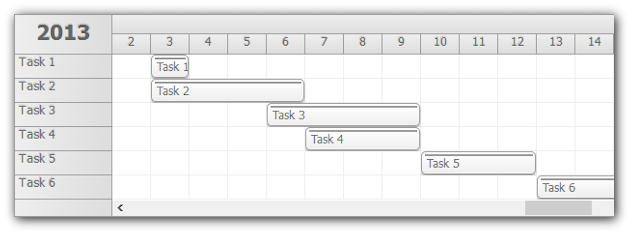
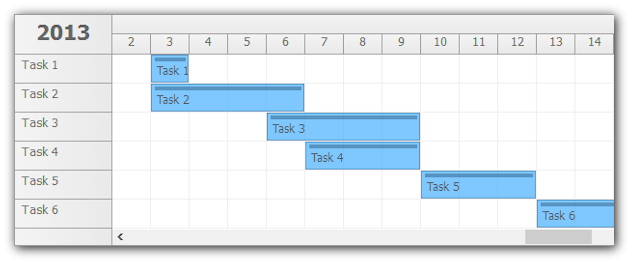
Examples of available themes:
Green Theme
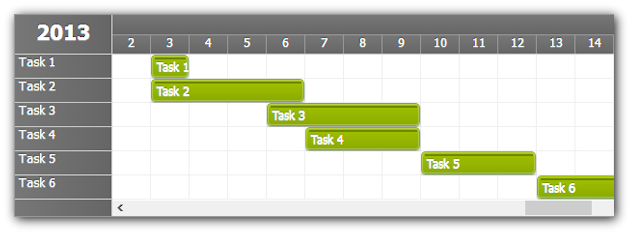
White Theme
Transparent Theme
CSS Theme Designer
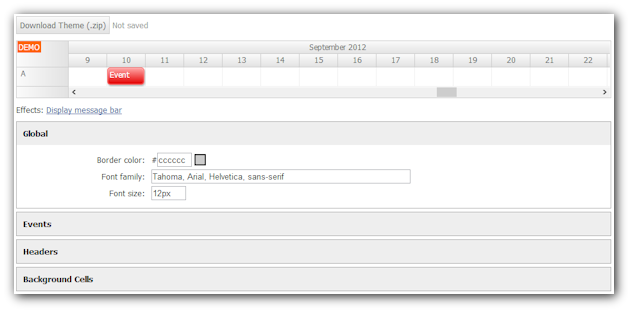
Create your own CSS theme in the online theme designer application.
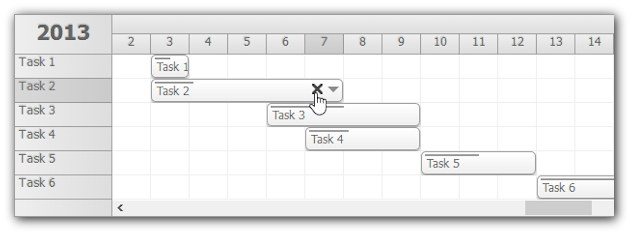
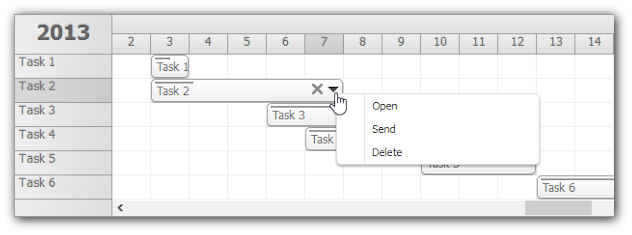
Active Areas
You can define custom active areas inside the task box that will be permanently visible or that will be displayed on hover.
An active area can have an action associated to it:
- context menu
- drag handler for moving
- drag handler for resizing
- custom JavaScript action
protected void DayPilotScheduler1_BeforeEventRender(object sender, BeforeEventRenderEventArgs e)
{
    e.Areas.Add(new Area().Width(17).Bottom(9).Right(19).Top(3).CssClass("event_action_delete").JavaScript("dps1.commandCallBack('delete', {id:e.value() });"));
    e.Areas.Add(new Area().Width(17).Bottom(9).Right(2).Top(3).CssClass("event_action_menu").ContextMenu("cmSpecial"));
}
Event delete icon example
Event context menu example
Task Details
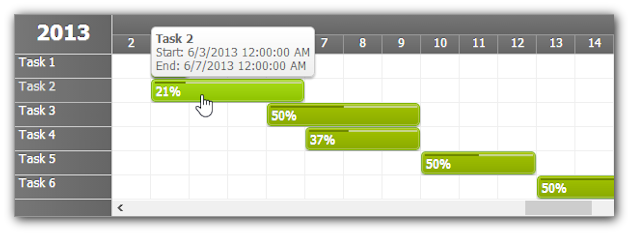
One of the ways to display the event details is DayPilot Bubble - an extended HTML tooltip that is displayed on hover.